Product: Synergy (all versions)
Operating system: Windows, macOS, and Linux
Synergy 3
If you're having a problem using Synergy 3, and can't find the solution in our help articles, then you'll need to open a support ticket.
When opening a ticket, we'll almost always ask you to send a diagnostic report for each of your computers. The diagnostic report comes in the form of a .zip file, a single file archive that that stores multiple files.
The diagnostic report .zip files allows our technical support team to get a deep understanding of what is going wrong. It contains logs and diagnostic reports about the inner workings of the app.
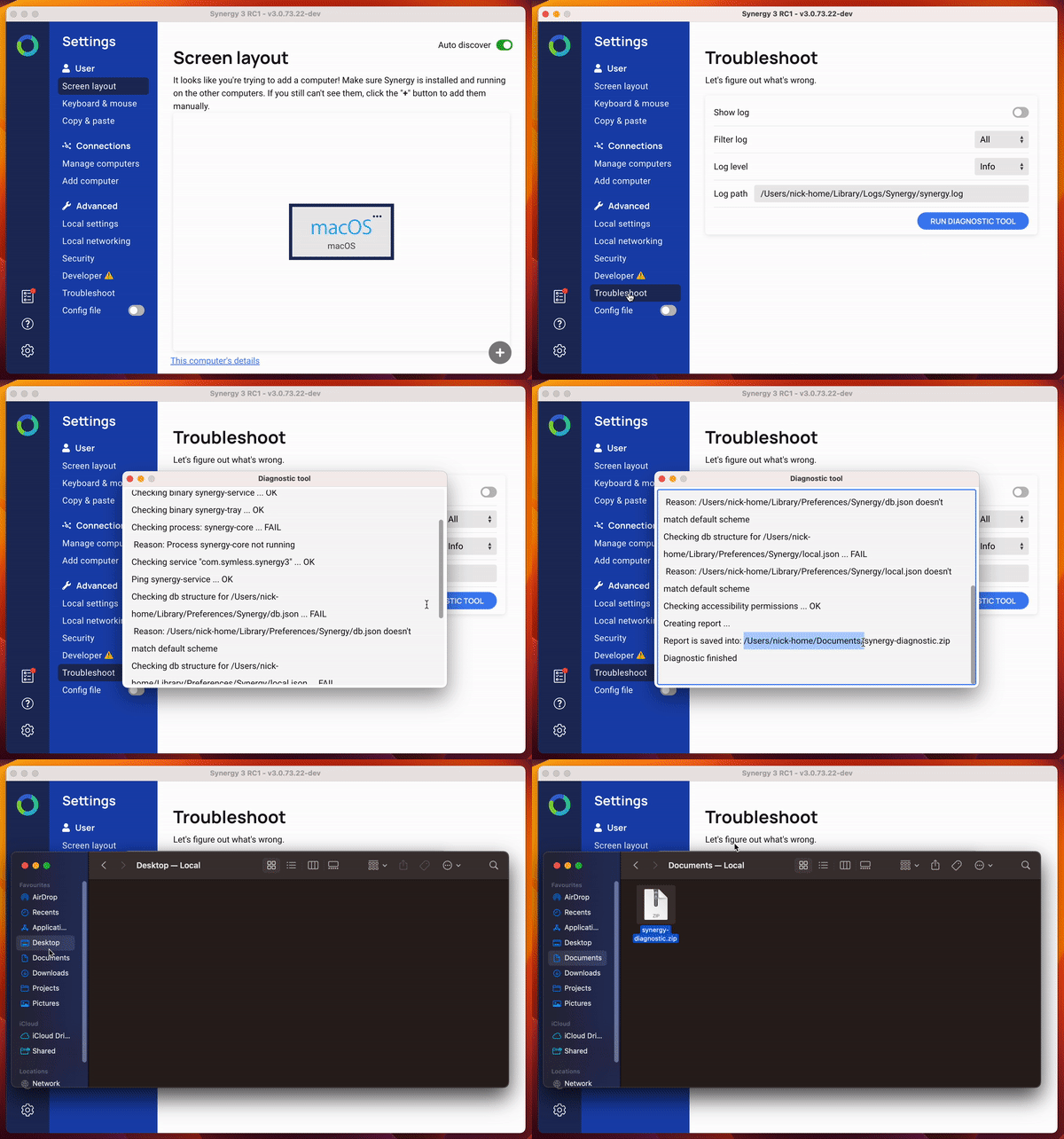
How to run the diagnostic tool in Synergy 3
Steps to run the diagnostic tool in Synergy 3:
- Open Synergy
- Click Troubleshoot
- Click Run diagnostic tool
- Repeat for each computer
- Alternatively, if you're having problems getting to that screen:
- Open Synergy
- Click on the Help menu*
- Run Diagnostic Tool
- Repeat for each computer
*The Help menu is at the top of the window on Windows and Linux.
On macOS the Help menu is at the top of your screen while the Synergy app is in focus.
The diagnostic tool generates a .zip file in your Documents folder (within your user folder).
On Windows, the .zip will be at: C:\Users\username\Documents\synergy-diagnostic.zip
On macOS, the .zip will be at: /Users/username/Documents/synergy-diagnostic.zip
Please attach the .zip report files to your support ticket.
Synergy 1
If you want to save your log content, for your own troubleshooting or to send to our support team, you can enable this setting in the Synergy user interface.
Steps:
- Open Synergy
- Open the Preferences meny (Edit>Preferences)
- Under Advanced, enable the checkbox to "Log to file"
- Optional - under Level you can select different logging levels; Info, Debug, Debug1, Debug2
- Select a path to save the log file, the default will be your user folder
- Press save