Product: Synergy (all versions)
Operating system: Windows, macOS, and Linux
If you're playing a video game or using any full screen app, you may want to lock your cursor to one computer.
Most Windows PC keyboards keyboards come with a scroll lock key.
You can use this key to toggle the cursor lock on and off. Pressing this key will lock the cursor to a particular computer, and then pressing it again will release the lock. This comes in handy when you're playing a video game, or doing something else in full screen mode.
If everything was working fine and suddenly you can’t move your cursor from one computer to another, you might have pressed the scroll lock key by accident. Just press on the key to release the cursor lock. If this does not work, you might have a connection or config issue.
If you don't have a scroll lock key (for example Mac keyboards), you can customize the lock cursor key:
Customize the lock cursor key
Synergy 3
- Open Synergy
- Go to Keyboard & Mouse
- Press the arrow next to "Hotkey configuration"
- Press the "Create hotkey" button
- A pop up will appear. Click on “Record keystroke”
- Press a key or key combo (e.g. Ctrl+Alt+L) to choose a key binding
- Click the button "Create Action"
- Under action type, select "Lock cursor to the current computer"
- Press Save
Creating the hotkey
Configuring a hotkey action
Synergy 1
- Go to the server computer.
- Click the Configure button.
- Go to the Hotkeys tab.
- Click the New button next to the Hotkeys column.
- A pop up will appear. Click on “keystroke()”.
- Press a key or key combo (e.g. Ctrl+Alt+L) to choose a key binding and click OK.
- Select “keystroke(Ctrl+Alt+L)” from the Hotkeys column, then click the other New button (the one next to the Actions column). You should see a dialog that says “Configure Action” at the top.
- Click on the “Lock cursor to screen” button, and make sure that toggle is selected:
- Click OK on the hotkey “Configure action” dialog window, then click OK on the Server Configuration dialog window.
- Click the Apply button on the main window to apply the new configuration.
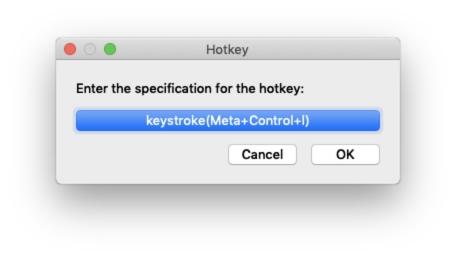
Creating the hotkey

Configuring a hotkey action